
How to Livestream With the Switcher App on a Mac
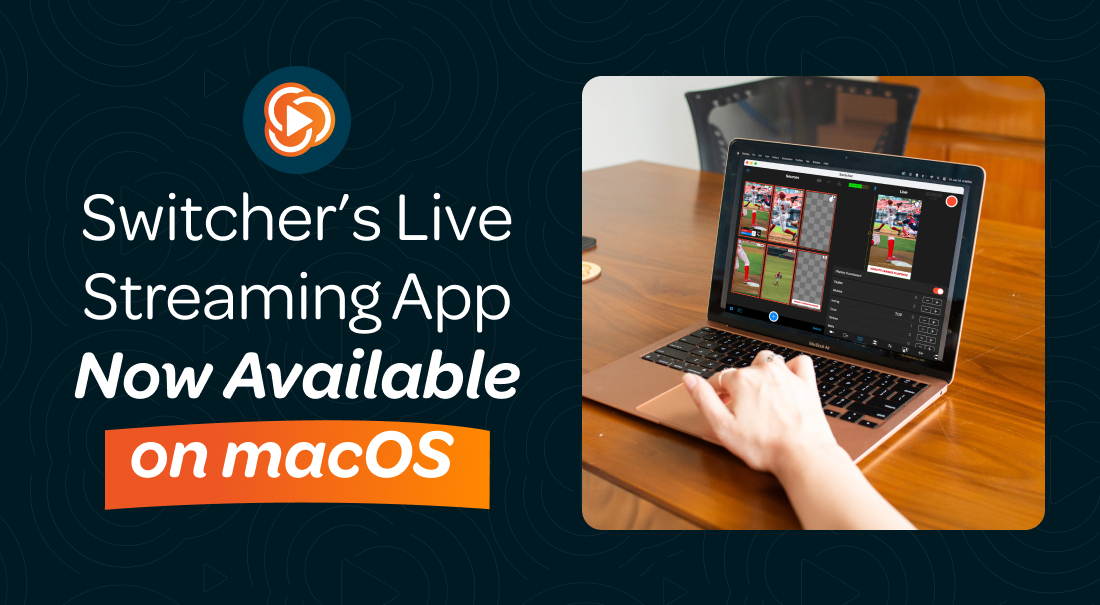
Note: Current limitations for Switcher on macOS include the ability to send HDMI Video out for external displays and using the Remote Guest feature. The Remote Guest feature will be available soon!
- Switcher Studio Requirements
- How to Install the Switcher App
- How to Launch the Switcher App
- Switcher App Interface Overview
- How to Create Assets
- How to Connect Camera Angles & Screenshare
- How to Connect Your Streaming Platforms
- How to Start a Livestream
- How to Switch Between Angles & Assets
- How to End a Livestream
- Next Steps
- Related Videos
Switcher Studio Requirements
- macOS device(s):
- Must be a 2020 model or newer
- Requires macOS 15.0 or later
- Apple Silicon Chip (M1 chips and later)
- Internet connection: WiFi, mobile data, or hotspot
- Platform to stream to: Facebook, Youtube, Twitch, Video Collections, etc.
How to Install the Switcher App
- Open the App Store on your OS device.
- Toggle on “iPhone & iPad Apps”
- Type "Switcher Studio" in the search bar.
- Click Get or Install next to Switcher: Live Streaming App.
How to Launch the Switcher App
- Click the Switcher app on your macOS device.
- Click OK if prompted with "Switcher would like to find and connect to devices on your local network."
- Click OK if prompted with "Switcher would like to access the camera".
- Click OK if prompted with "Switcher would like to access the microphone".
- Log in with your Switcher account information
- Click Go Live
- Select Horizontal or Vertical
- Click Enter Studio
After creating an account and/or logging in, you will be brought to the main interface. The Switcher app is divided into three primary sections: Sources, Live, and Tools.
Switcher App Interface Overview

|
Character |
Description |
|
A |
Home Screen Menu |
|
B |
Info Panel (Device Status) |
|
C |
|
|
D |
Auto-Focus |
|
E |
Share Live Video Link |
|
F |
|
|
G |
Mute Tool |
|
H |
|
|
I |
Record (Go Live) |
|
J |
Live Feed |
|
K |
Sources Panel |
|
L |
Tab Bar |
|
M |
|
|
N |
Production Panel Sizing |
|
O |
Assets Menu |
|
P |
Select Tool |
|
Q |
Inputs Tab (Cameras & Screens) |
|
R |
Outputs Tab (Destinations) |
|
S |
Effects Tab |
|
T |
|
|
U |
Audio Tab |
|
V |
|
|
W |
|
|
X |
|
|
Y |
Auto-Switch Tab |
|
Z |
Live Comments Tab |
|
AA |
Timestamp Tab |
|
BB |
Sources

Live

Tools

How to Create Assets
-
Click the blue plus icon.
Click the asset type. (i.e. Logo, Video, Audio, etc.)
Click the asset location.
Click the asset of your choice.
- You will now have the ability to configure any additional asset settings, such as framing and layering settings.
- Click Done in the top-right corner.
- The asset thumbnail will now appear in the Production Panel as a clickable option to display in your livestream.
To create a new asset:
-
Click the blue plus icon.
Click the asset type. (i.e. Text, Cards, etc.)
Click the asset style of your choice.
Click the asset template you want to use.
- You will now have the ability to configure any additional asset settings, such as text fields and colors.
- Click Done in the top-right corner.
- The asset thumbnail will now appear in the Production Panel as a clickable option to display in your livestream.
Note: Switcher Cloud is a feature that allows you to upload, store and import assets using cloud-based technology. Check out the Switcher Cloud Overview article for more information.
How to Connect Camera Angles & Screenshare
While using additional iOS devices as cameras or screens is not a requirement to livestream with Switcher Studio, it is an easy way to enhance the quality of your production. To use iOS devices as remote cameras or shared screens, each device will need to have the Switcher Studio app installed and be connected to the same wireless network or hotspot.
Note: While you can connect iOS devices as camera angles with Switcher running on your Mac, you cannot connect other computers using this method. Please view the following articles to learn how to screenshare additional computers using Switcher Cast:
Screensharing a Mac using Switcher Cast
Screensharing a PC Using Switcher Cast
To connect remote devices:
-
Ensure all devices are connected to the same wireless network.
Open the Switcher Studio app on all devices.
On the remote device(s), there is no need to log-in. Simply tap Share Camera or Screen.
-
Tap Share Camera or Share Screen.
On the main switcher, tap the Inputs tab (camera icon).
- Tap the name of each device that you would like to connect.
-
- On the remote device(s), tap Allow.

How to Connect Your Streaming Platforms
The next step is to connect your platform accounts to Switcher Studio. Follow the steps below to connect to platforms like Facebook, YouTube, Twitch, etc.
Note: For a complete list of streaming platforms available with Switcher Studio, check out the Streaming Platform Integrations article.
To connect your streaming platform(s):
-
Click the Outputs tab (box and arrow icon) in the bottom-right corner.
Choose Livestreaming in the Broadcast Mode section.
Click New Livestream>Create New Livestream
Click the platform you >want to connect.
Log in with your platform account credentials if prompted.
Click Connect Account.
Click Continue.
Click Next and you will now be able to configure the Event Details for your first livestream.
- Destination location (for Facebook only)
- Scheduling: Go Live Now or Schedule for Later
- Title
- Event Description
- Stream Quality
-
Destination Settings
Click Create Event.
- The event name will appear in the Outputs tab with the destination list.
Note: If you would like to stream to two platforms simultaneously, be sure to check out the Multistreaming With Switcher Studio article.

How to Start a Livestream
Now that you have connected your streaming platform(s), you are ready to go live! Follow the steps below to start broadcasting to your live audience.
To start the livestream:
- Click the Outputs tab. (box and arrow icon).
- Ensure the name of the event you want to stream to is displayed under Livestream.
- If needed, Click Change to select a different livestream as the Active Livestream.
- Click the red button in the top-right corner.
Note: If you want to make a test stream that will not be visible to the public, you can create a private test stream on Facebook. Check out the Creating a Private Test Stream on Facebook article to learn more.


How to Switch Between Angles & Assets
To display sources in the livestream:
- In the Sources panel, Click the asset or camera angle you want to display.
- An orange box will appear around the source you selected, and the live feed will display accordingly.
- Click the next camera angle or asset you want to display to remove the current one from the live feed.
Note: For Multiviews configured to choose the camera angles each time, the steps to display will be slightly different. To learn more, check out the Multiviews article.
How to End a Livestream
To end the livestream:
- Click the stop button (red square) in the top-right corner.
- Wait for the progress bar to complete.
- The display will indicate that the livestream has successfully ended.
Next Steps
Now that you have successfully made your first livestream using Switcher Studio, it is a great time to learn about some of the additional features available to enhance future productions. Below is a summary of just a few of these tools along with links to articles that walk through setting up and using the features.
Multiviews
Multiviews are customizable assets that allow you to display multiple sources on the screen at the same time. This is great for interviews or co-hosting a production. For more information, read the Multiviews article.
Live Comments
When livestreaming to platforms, live comments from the audience can be loaded into the Switcher Studio app. The comments can be displayed on-screen which allows you to respond and engage with your viewers in real-time. To learn more, check out the Live Comments article.
Remote Guests
The Remote Guest feature in the Switcher Studio app allows you to remotely connect a guest to your livestream and display their camera and audio as part of the production. This is a great tool for interviews and productions where not all members are on-site. To learn more, check out the Remote Guest Overview article.