
FAQ + Pro Tips!
How do I add more camera angles?
How do I make it look like a real broadcast?
What's the simplest way to stream to the right place?
How do we get cleaner audio?
Where are my Local Recordings?
How do I add more camera angles?
Download the Switcher app on any other device you'd like to use as a Remote Camera and use the QR code or buttons below to be taken directly to the download page. (iOS + Android)
Pro Tip: Start with two angles: wide church view + tighter follow of the speaker on stage. (Be sure to have all devices on the same WiFi!)
New for 2026: You can use your Android devices (Samsung, Google Pixel, Motorola) as Remote Cameras.
How do I make it look like a real broadcast?
Use a repeatable graphics package: Start with your church's logo, a few lower thirds, and consider sharing your lyrics and scripture via Switcher Cast. You can display as a 'picture-in-picture' Multiview or as an overlay!
Here's how to include lyrics and scripture during your live service - WATCH
What's the simplest way to stream to the right place?
Pick the platforms your audience already uses, connect them once, then go live from Switcher. You can also embed the stream on your church's website.
Stream to Facebook - Quick Guide
Stream to YouTube - Quick Guide
How do we get cleaner audio?
Clean audio matters more than another camera angle. If you can pull audio from a mixer or audio interface, route it into your main device via USB.
One of the main benefits of Apple devices is that they are typically plug and play with USB audio sources!
We encourage you to ask our team about optimizing your audio setup! We enjoy this stuff.
Where are my Local Recordings?
By default, a recording will be available on the main broadcasting device, within the Switcher app. You can access the Local Recordings from the initial Welcome screen.
From the Welcome screen, tap Video Library.
After tapping Video Library, tap the text "Video Library" at the top of the page to reveal the dropdown selection for Local Recordings.
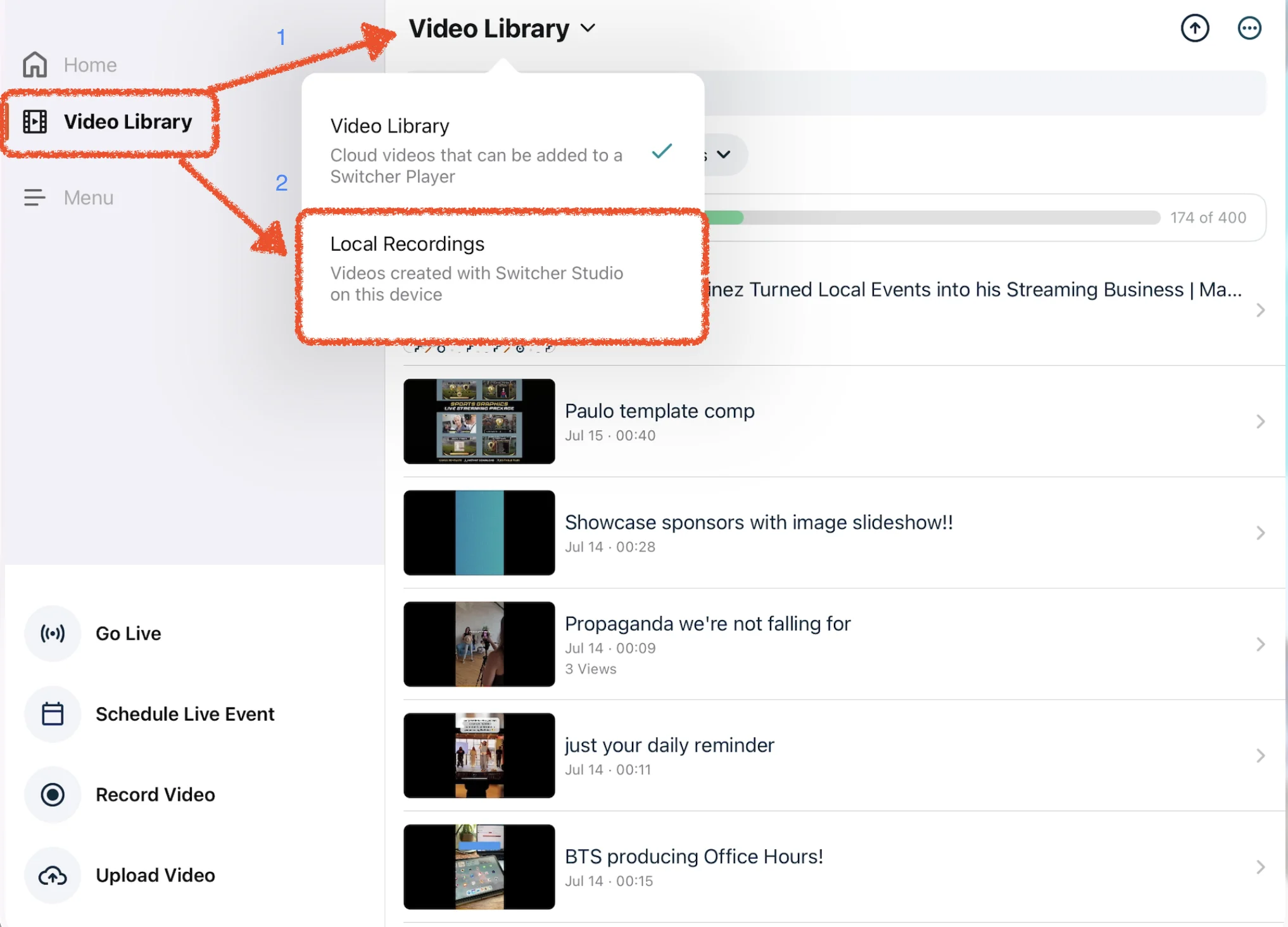
Pro Tip: Once you've located the Local Recordings section, you can create short-form clips for social media or export to your device's Files App or Camera Roll.