
Stream to YouTube (Quick)
To link your YouTube channel using the Switcher Studio app:
- Log in to the Switcher Studio app on the main iPad or iPhone
-
Tap the Menu icon
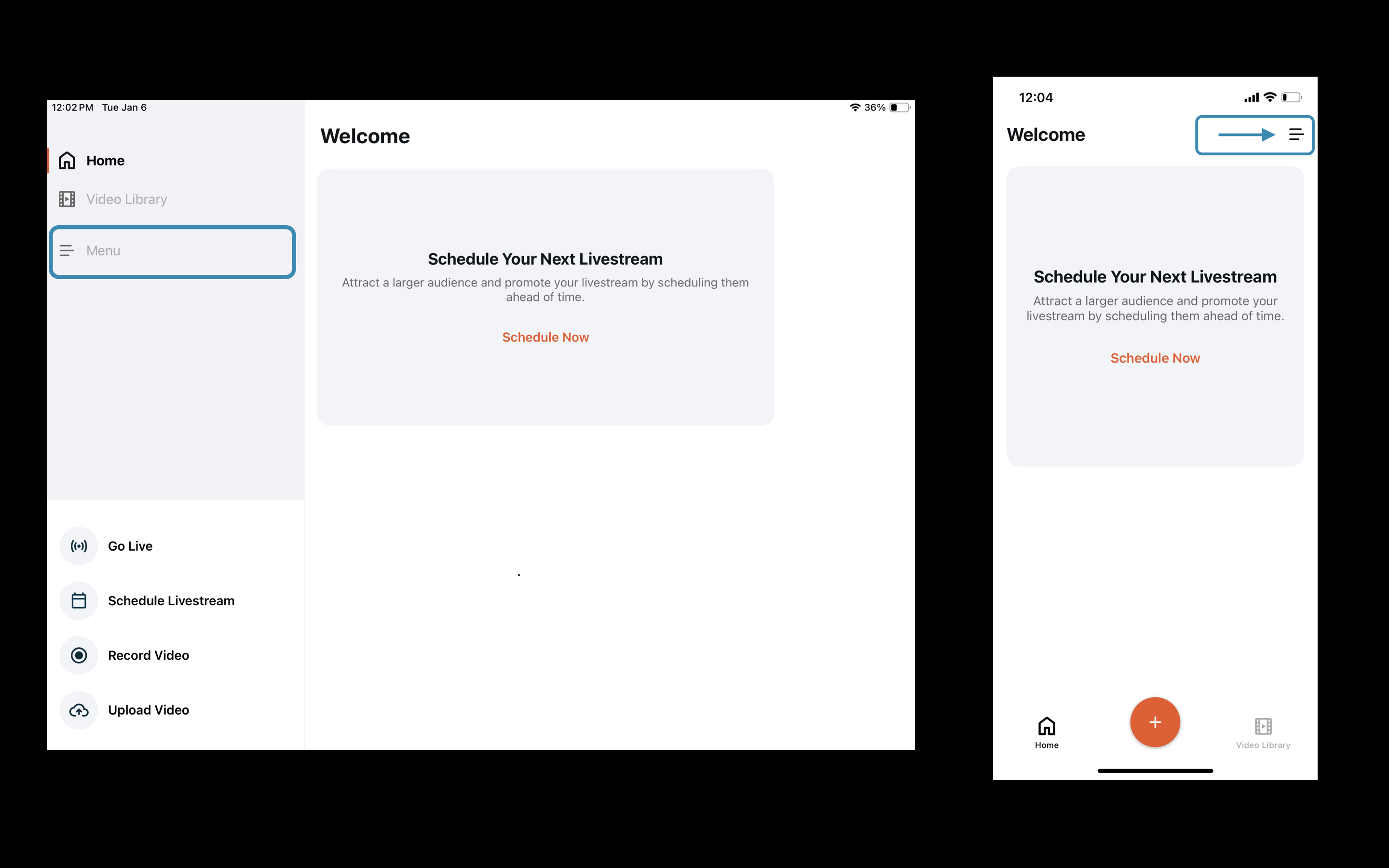
- Tap Platforms
- Tap Connect next to YouTube
- Enter your YouTube login credentials when/if prompted
- Once the platform is connected, return to the Home Screen by tapping the "back" arrow
If this is a new channel, or has not been enabled for livestreaming, click here to enable livestreaming via YouTube.com - This can take up to 24 hours for YouTube to approve
For a comprehensive look into YouTube account requirements, here's our full guide: https://support.switcherstudio.com/article/505-streaming-to-youtube-with-switcher-studio
To set up your livestream to YouTube:
-
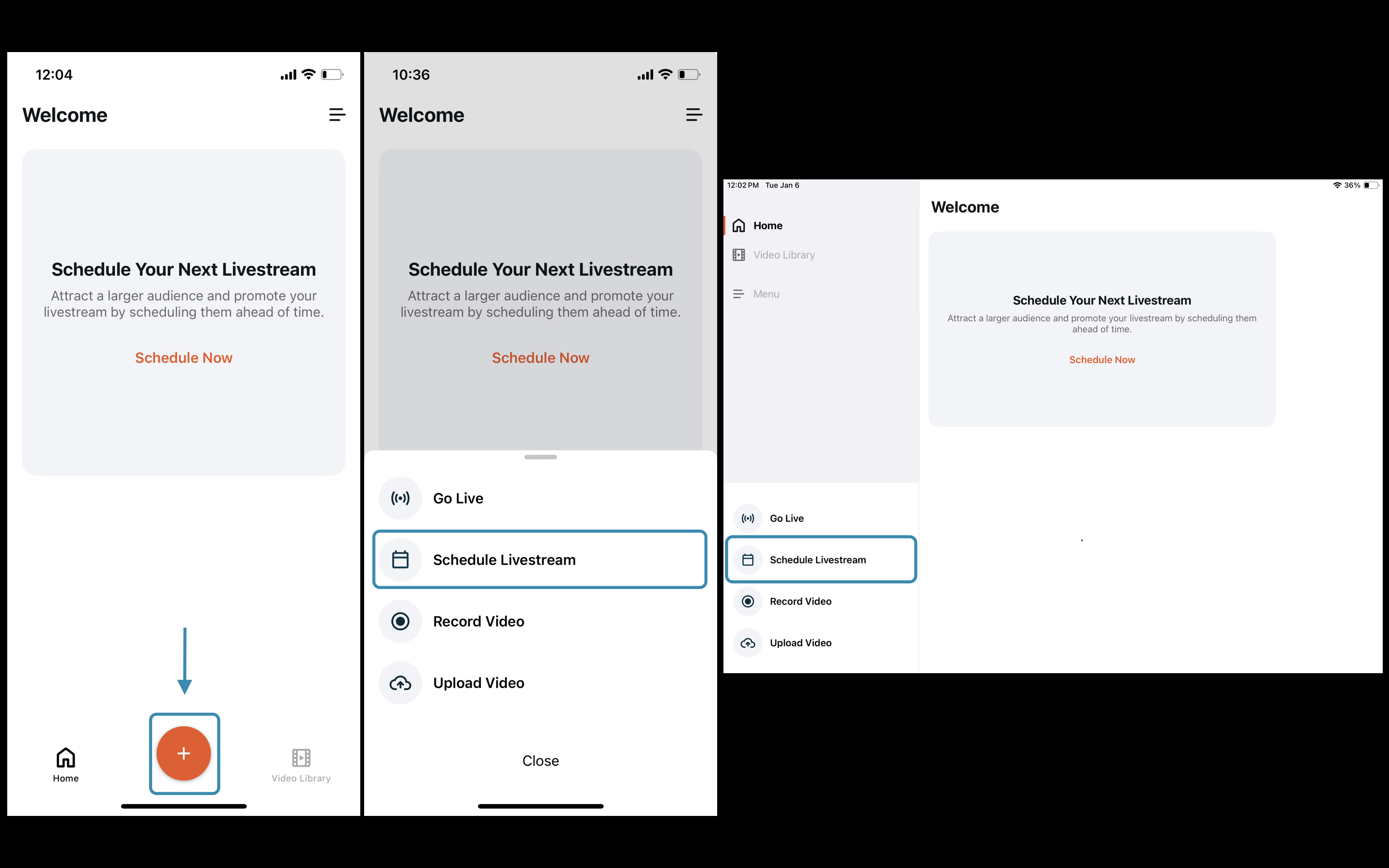
Tap Schedule Livestream from the Home Screen
-
Tap the YouTube icon and then select your channel
repeat this step to add another platform as a destination
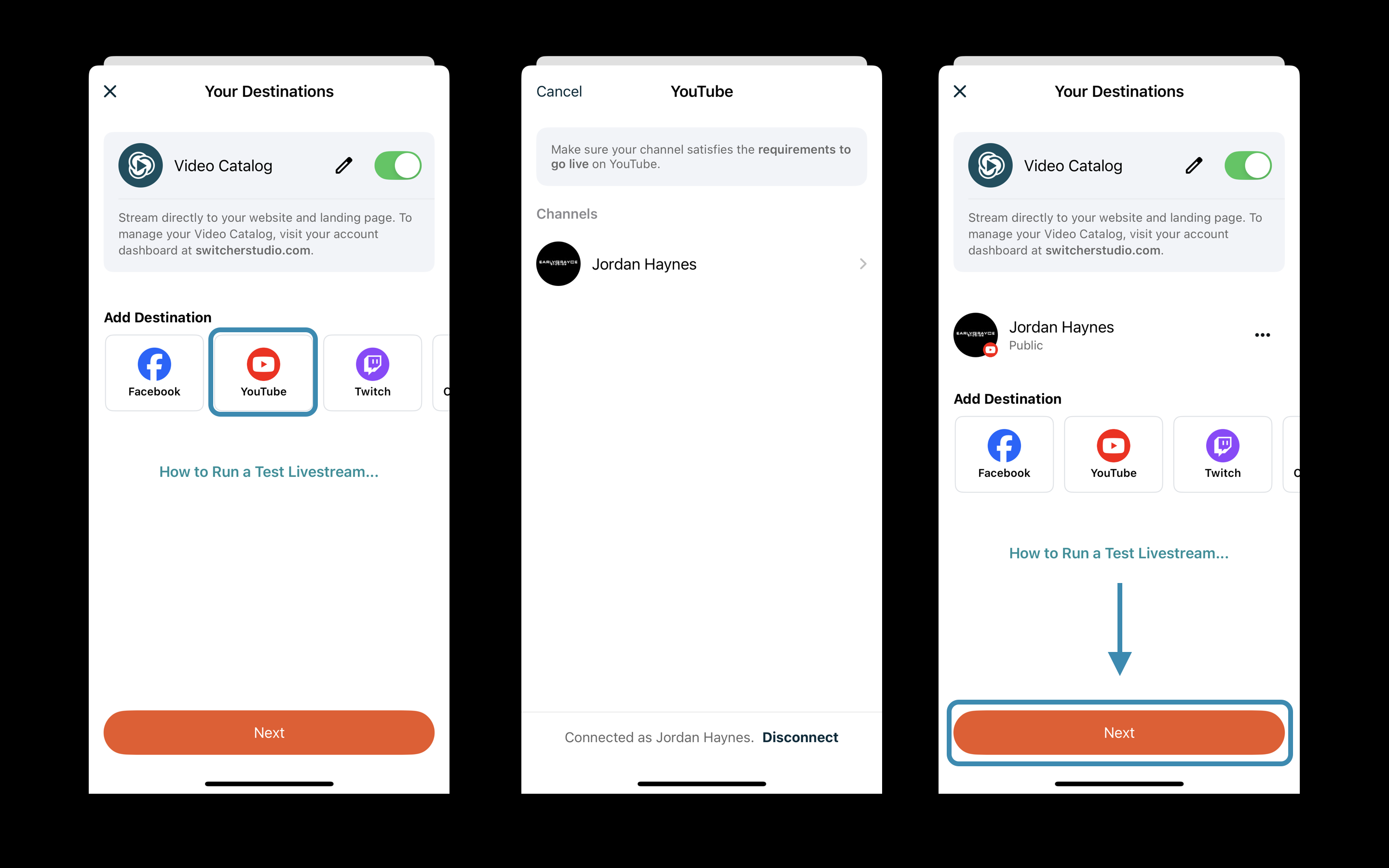
- Tap Next to proceed to the Event Details section
- Enter the Title + Description and choose a scheduled time. To bypass any scheduling, tap the date and select Go Live Now
- Tap Done in the top right corner of the Schedule page
-
After selecting a stream Quality, tap Schedule Livestream
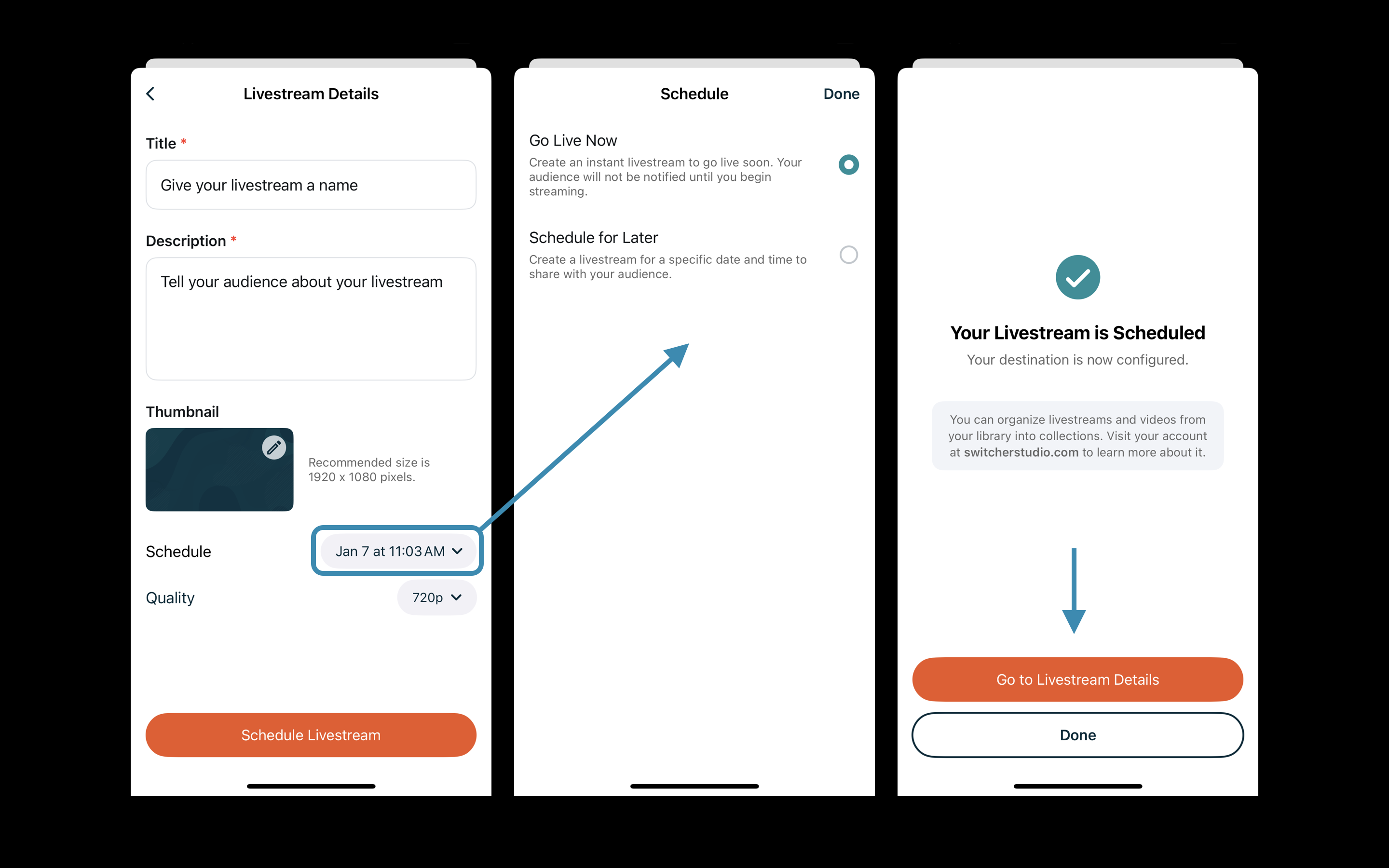
If you choose Go Live Now, you will be presented the option Enter Studio
If you choose Schedule for Later, you will first be presented the option Go To Livestream Details then Enter Studio
-
Select Video Ratio and tap Enter Studio
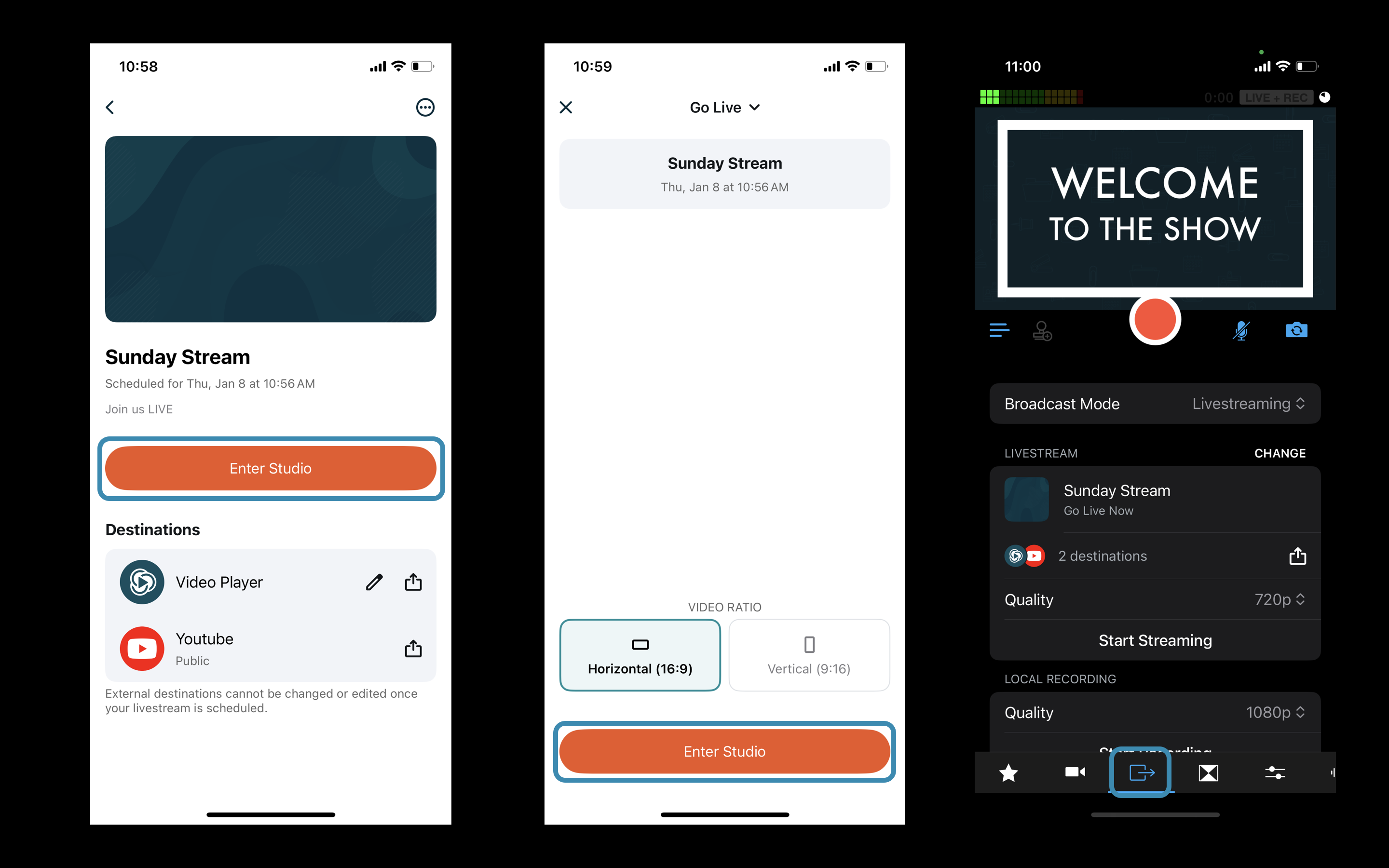
- Once you've entered the Studio, navigate to the Outputs tab to confirm that the Broadcast Mode is set to Livestreaming and that your event details are displayed as the active stream.
At this point, you're all set to begin your broadcast by tapping the big red button!
- Have any extra iOS devices on hand? Here's how you can easily turn your stream into a multi-cam production - ADD CAMERAS
- Want to include an interview guest (or 5) from elsewhere in the world? - ADD GUESTS
- Need to screen-share scripture, song lyrics or other graphics from your computer? - ADD SCREENS with Switcher Cast (Download)
Additional information:
- If you chose to Schedule for Later, please note that YouTube will still broadcast your live feed if you press the big red button prior to the scheduled start time.
- If you need to multistream to an additional YouTube channel, simply create the live event on YouTube.com and utilize the stream key + server url by creating your own Custom RTMP channel and choosing that channel as a destination. Here are the steps!