
How to use NDI Cameras with Switcher (Beta)
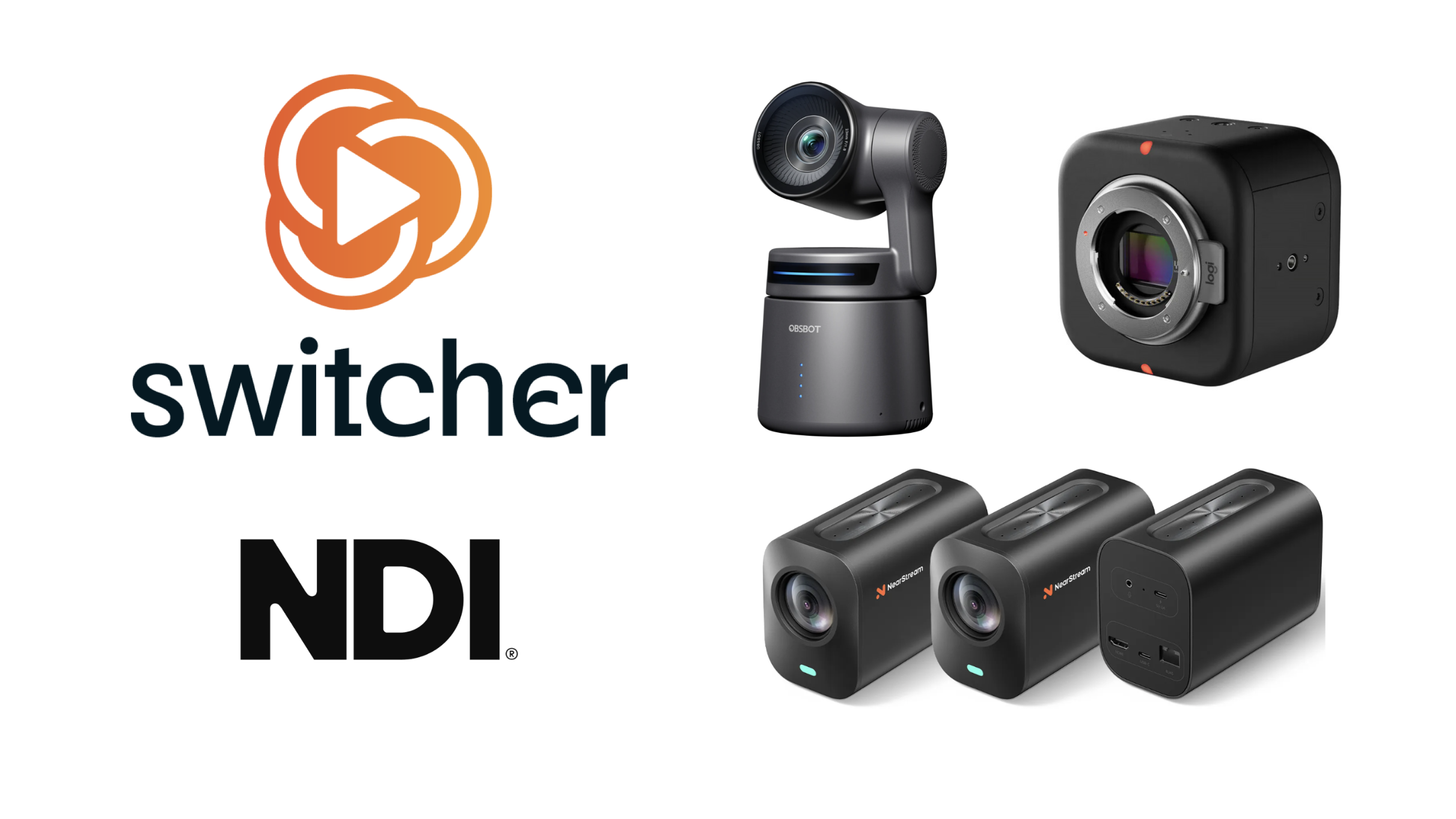
With the release of Switcher 13.17.0, NDI (Network Device Interface) hardware will be compatible with the Switcher app for Beta testing. NDI is a video connectivity standard that enables multimedia systems to identify and communicate with one another over IP.
Note: This iteration of NDI compatibility is very much still in a testing phase with expanded versions coming soon!
Jump to:
- Requirements
- What's Included in 13.17.0 Beta
- What's Not Included in 13.17.0 Beta
- Additions Included With the Release of Switcher Version 13.20.0
- Camera Recommendations
- Connection Steps
- Camera Control
- Related Videos
Requirements
- Switcher: Live Streaming App Version 13.17.0 or later installed on a compatible iOS or macOS device. Switcher version 13.20.0 or later is required for available camera controls. See Compatible Devices.
- NDI camera source with NDI Mode enabled.
- Wi-Fi Network with the following Network Requirements.
What's Included in 13.17.0 Beta
- Switcher has an NDI License (applicable to Beta version and beyond) which makes our software compatible with any NDI-licensed hardware.
- NDI Cameras will be visible in the input/sources tab, in its own section.
- NDI Cameras toggle will need to be enabled by the user in order for Switcher to find the devices on the network and connect to them.
- Connection limit is 9 NDI cameras (part of the 9 remote camera total).
What's Not Included in 13.17.0 Beta
- Switcher’s first version of the NDI integration will not include camera control (ePTZ, rotation/movement) or any additional visual customizations like white balance, etc.
- NDI cannot be enabled with Director Mode or Record Remote Camera Mode.
Additions Included with the Release of Switcher Version 13.20.0
- Zoom capability on NDI cameras
- Control of focus capability on NDI cameras
- Exposure capability - only enabled if the capabilities of the camera expose the feature. It is not supported on Mevo or Nearstream cameras.
Camera Recommendations
Summer 2026's Best NDI Cameras For Live Streaming & Content Creation
Connection Steps
- Open the Switcher app>enter the Studio>navigate to the Inputs tab.
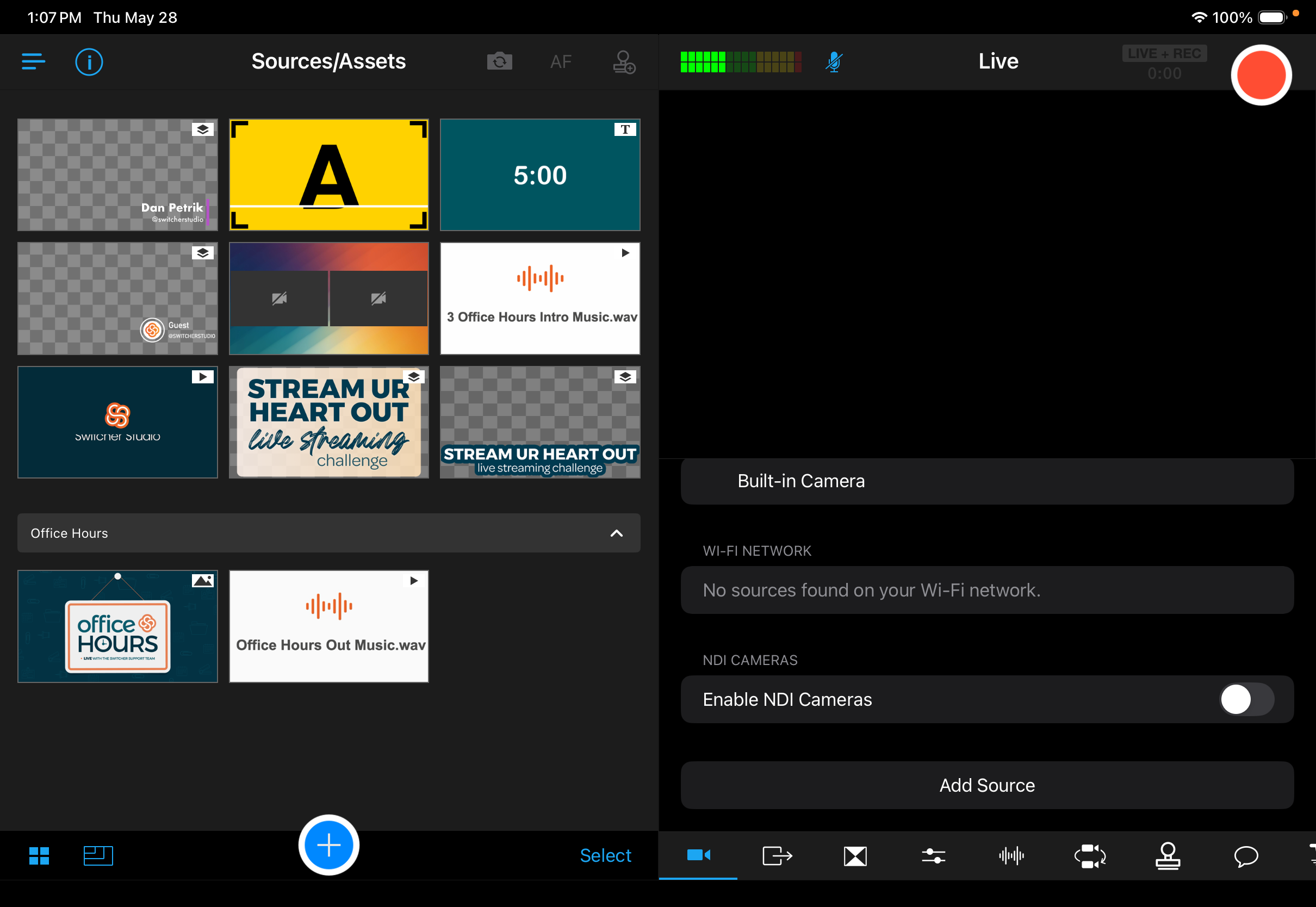
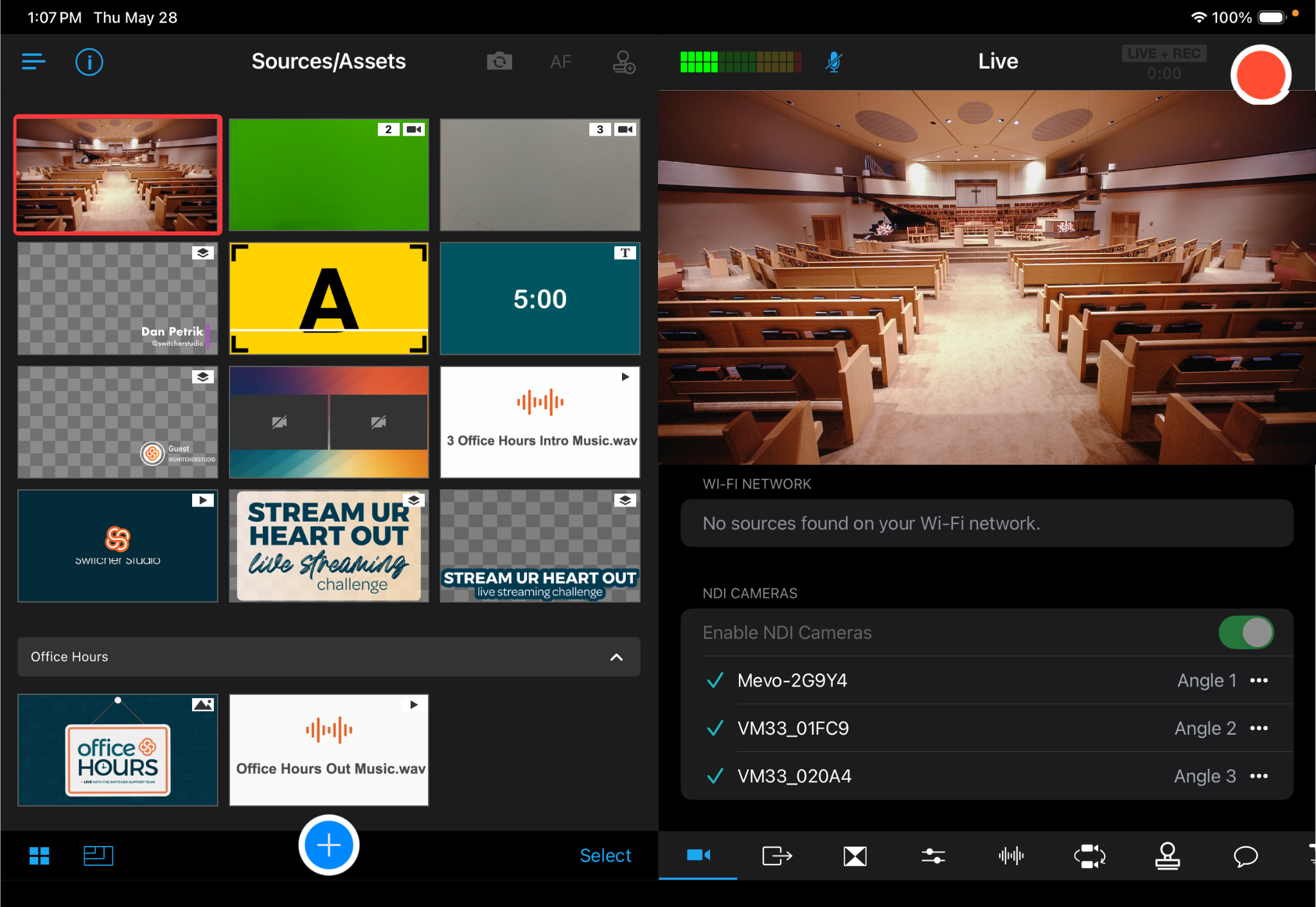
- Under the NDI Cameras section, toggle on Enable NDI Cameras.
- Power on your NDI Cameras and make sure they are connected to the same Wi-Fi (and frequency of Wi-Fi such as 2.4 GHZ, 5 GHZ, 6 GHZ) as the main Switcher device.
- Turn on NDI Mode for each camera. Instructions for this step vary by manufacturer and device type. Please check camera manuals for specifics.
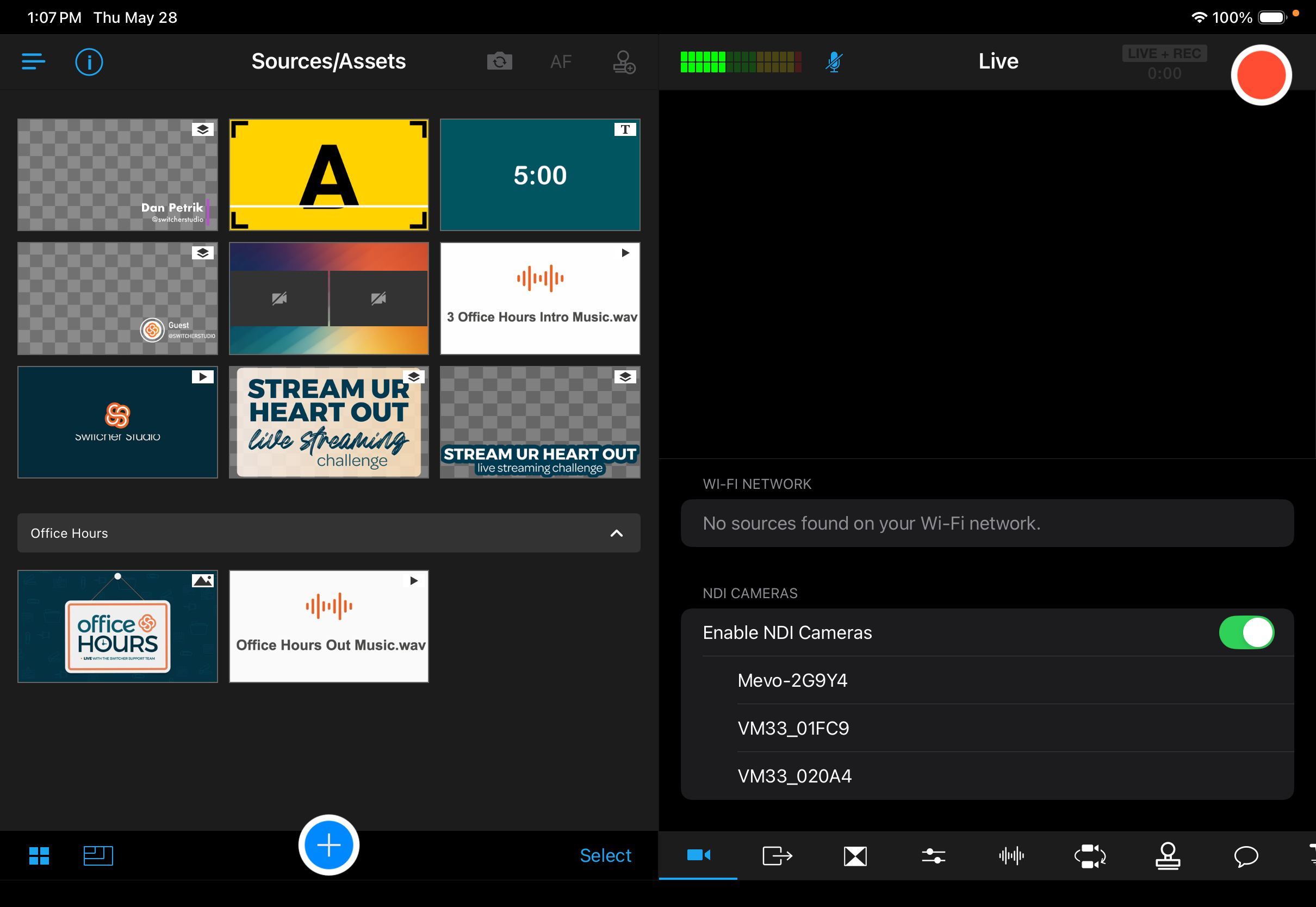
- Once the NDI Cameras appear as selectable sources tap each camera to connect.
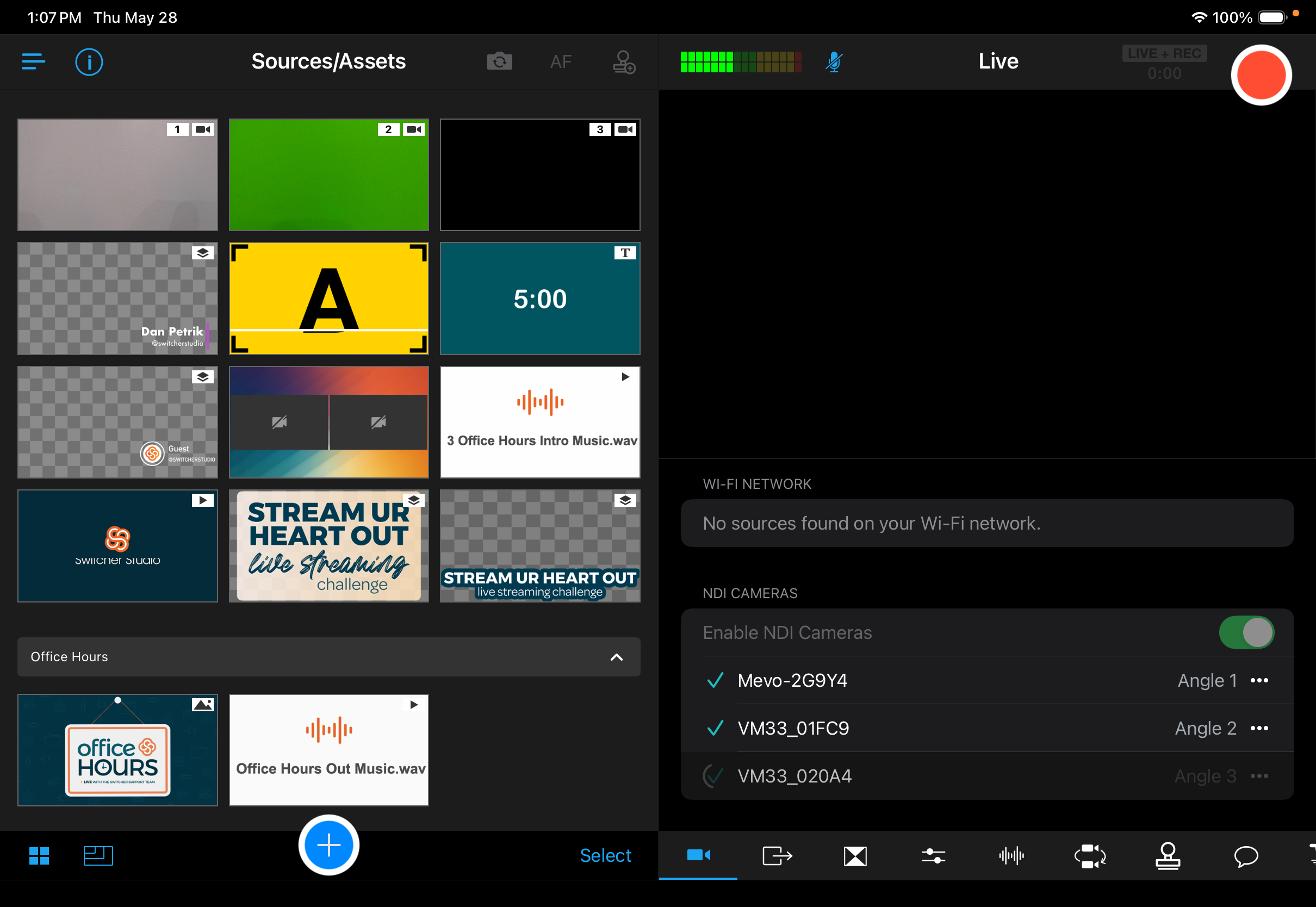
- Once connected, the NDI Camera names will have a checkmark next to them and their feeds will appear in the Sources panel.
- Tap an NDI Camera source to send it to the live feed.
Camera Control
- For camera control instructions please view the Camera Control Tab article.