
What to Do If You Accidentally Delete or Lose Recordings
It happens to the best of us. But before you panic, let's make sure you understand where your file should be stored and that you're looking in the right places to recover it.
In this Article:
Understanding the Difference Between the Local Recordings and Video Library Folders
Where to Look for Your Missing Recording
Ways to Permanently Lose Recording
Understanding the Difference Between the Local Recordings and Video Library Folders
Local Recordings: Videos saved to the main Switcher device and stored in the Switcher App.
Video Library: Videos uploaded to and stored in the Cloud.
Local Recordings:
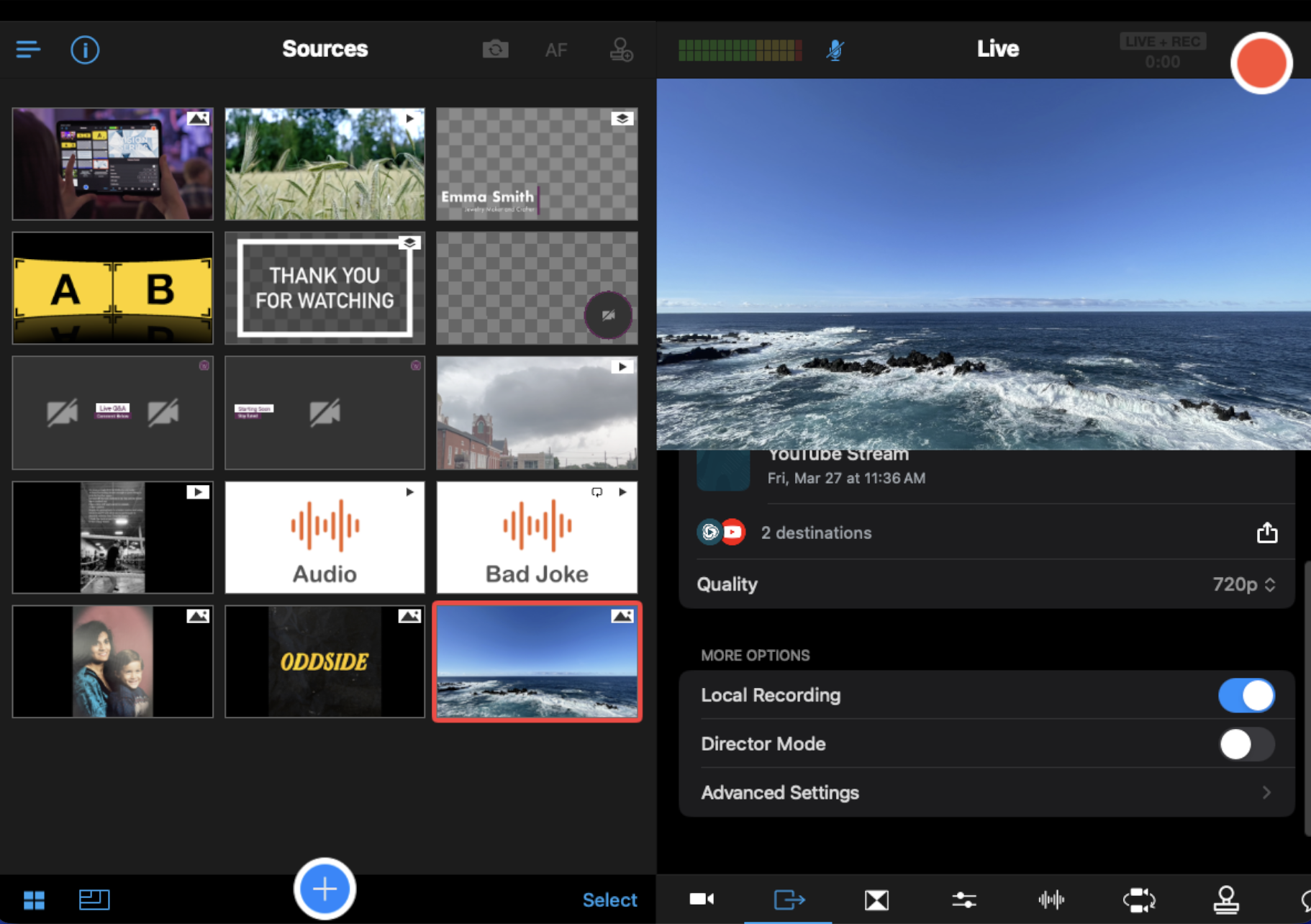
In the Outputs Tab of the Switcher App, the setting for Local Recording is turned on by default. This allows Switcher to save a copy of your stream to the device itself. This is recommended as a backup in case the internet connection struggles or fails during your stream. You can also use the feature for Separating Streaming & Recording to stream at the quality that works best for your Wi-Fi while saving a high-quality recording on your device post-broadcast.
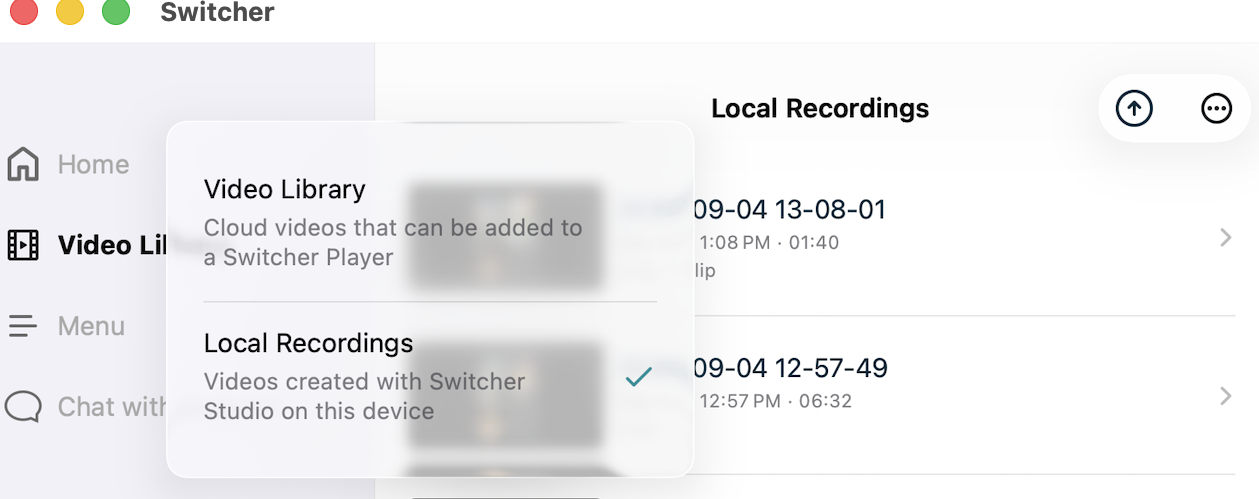
When you end your recording and the processing phase is completed, the video will go to the Local Recordings folder. There are two ways to access the Local Recordings folder:
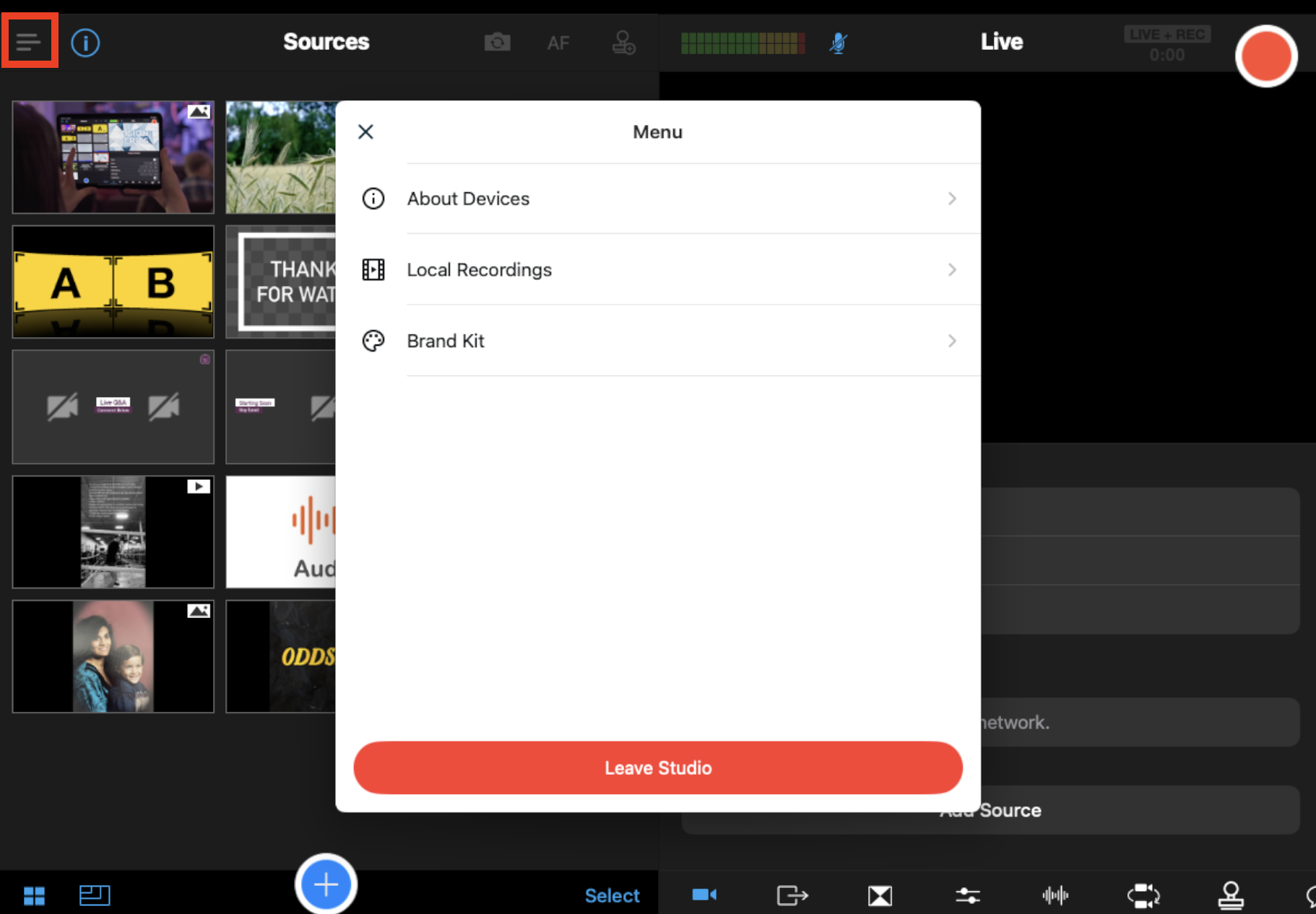
- While in the Studio, tap the Menu icon (three horizontal lines) and then tap Local Recordings.
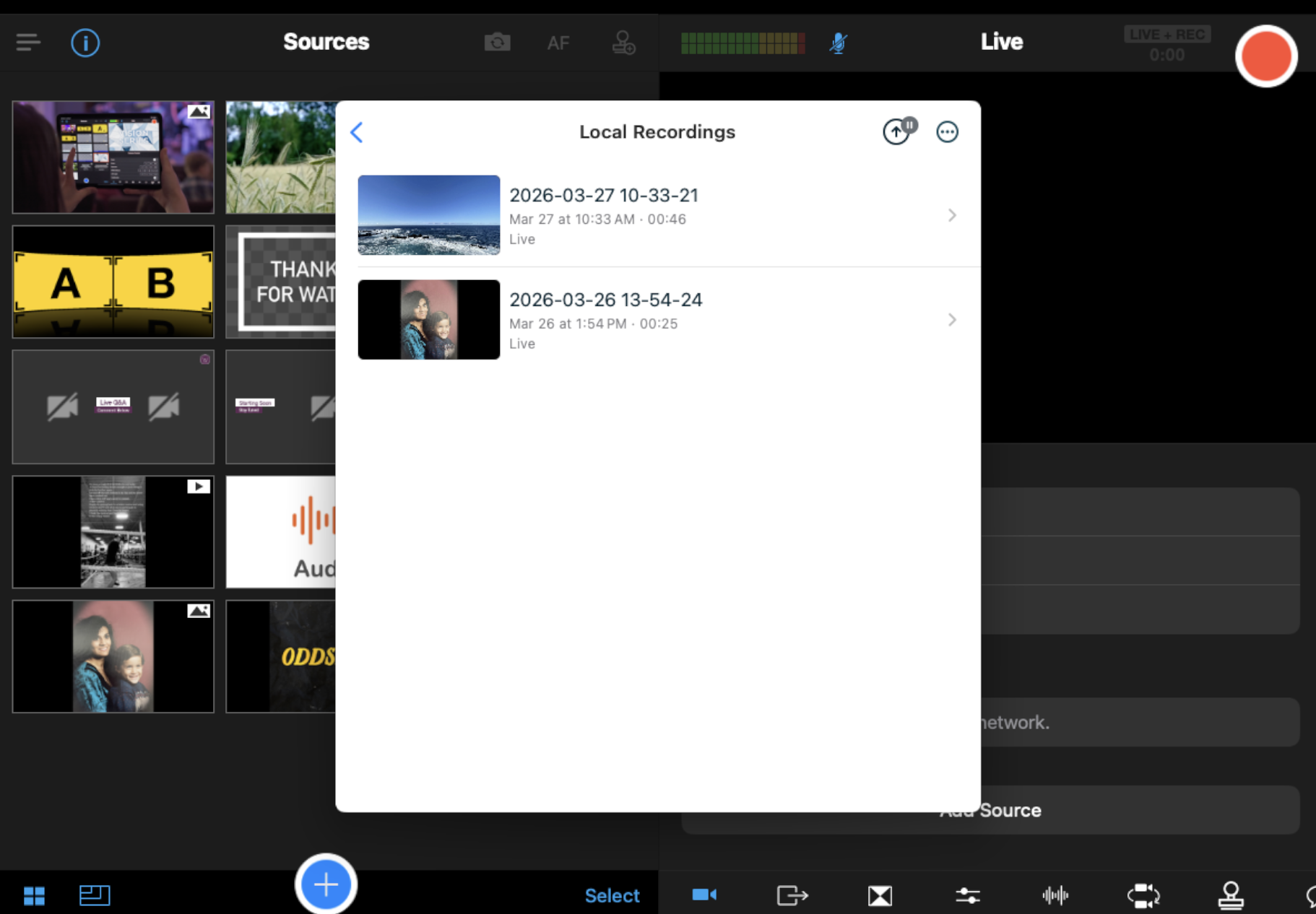
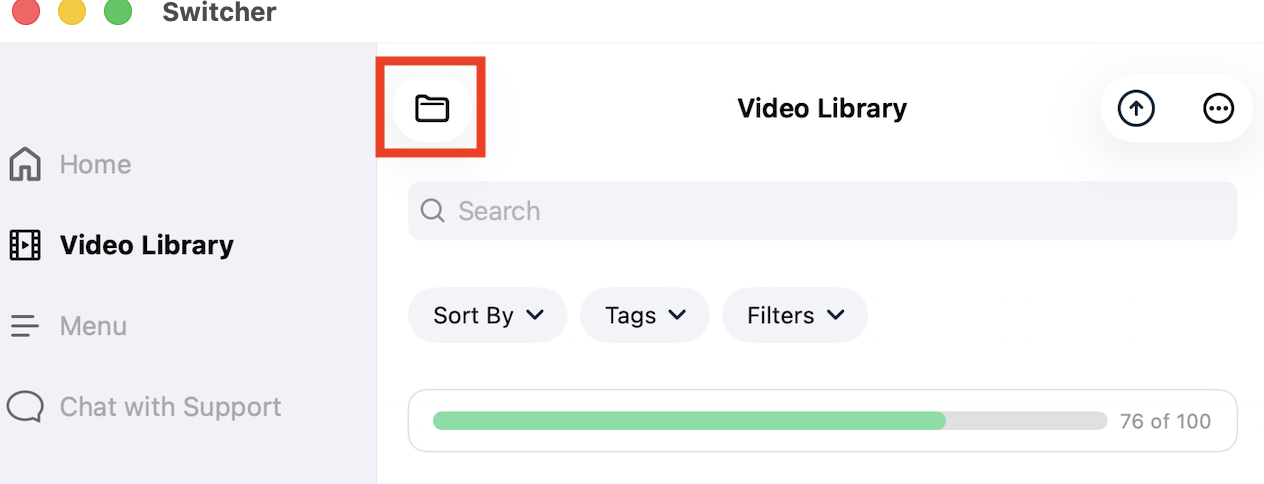
- While in the Home screen, tap Video Library and then use the Folder Icon to change between Local Recordings and Video Library.
Video Library:
There are three ways a Switcher recording gets into the Video Library:
- Manual upload from the Local Recordings folder after a recording is finished and processed.
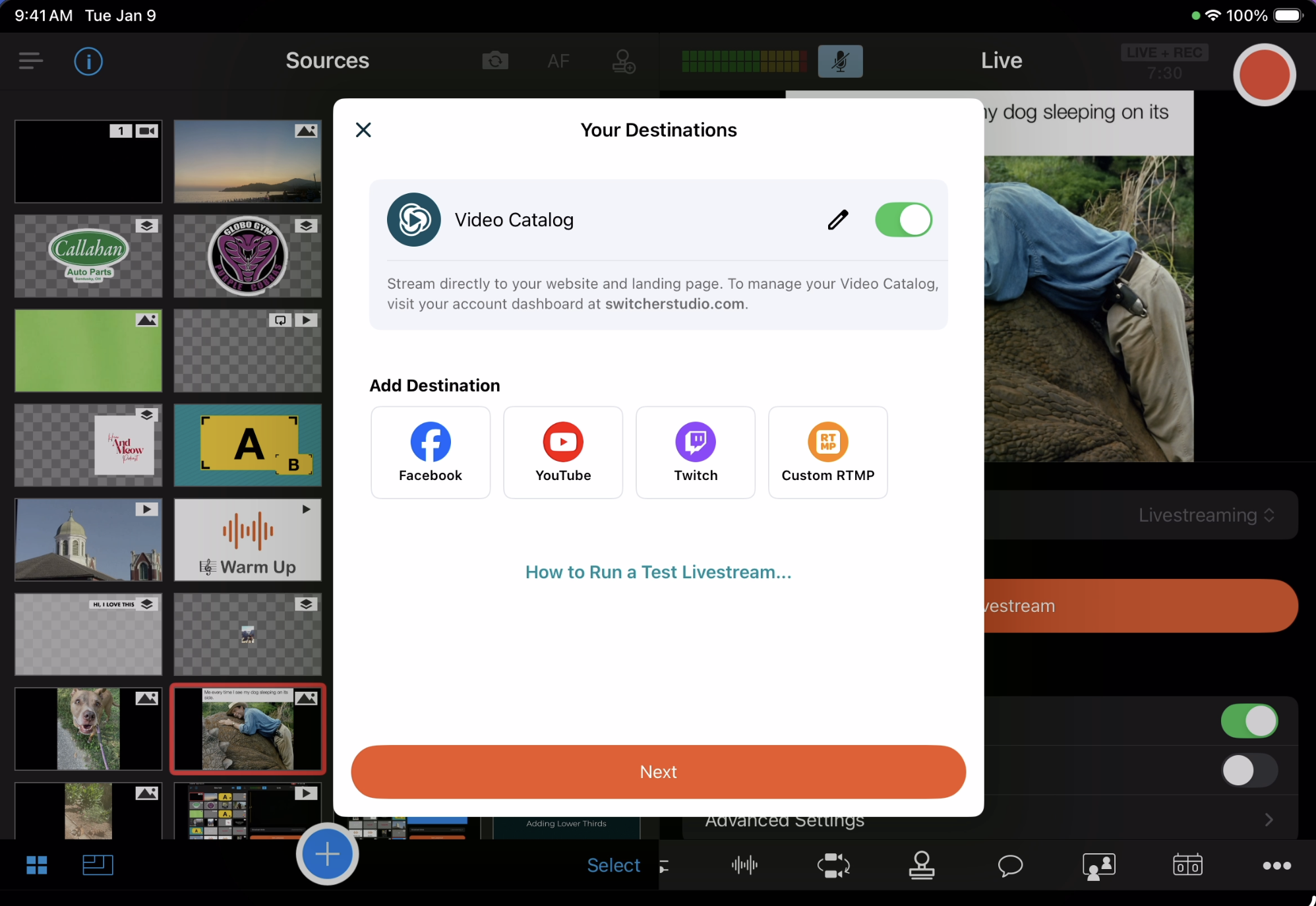
- Turn on "Video Catalog" when creating your streaming event in Switcher so that it's automatically uploaded.
- While on the Suite Plan and connected to the internet, videos are automatically uploaded via the Auto Save feature.
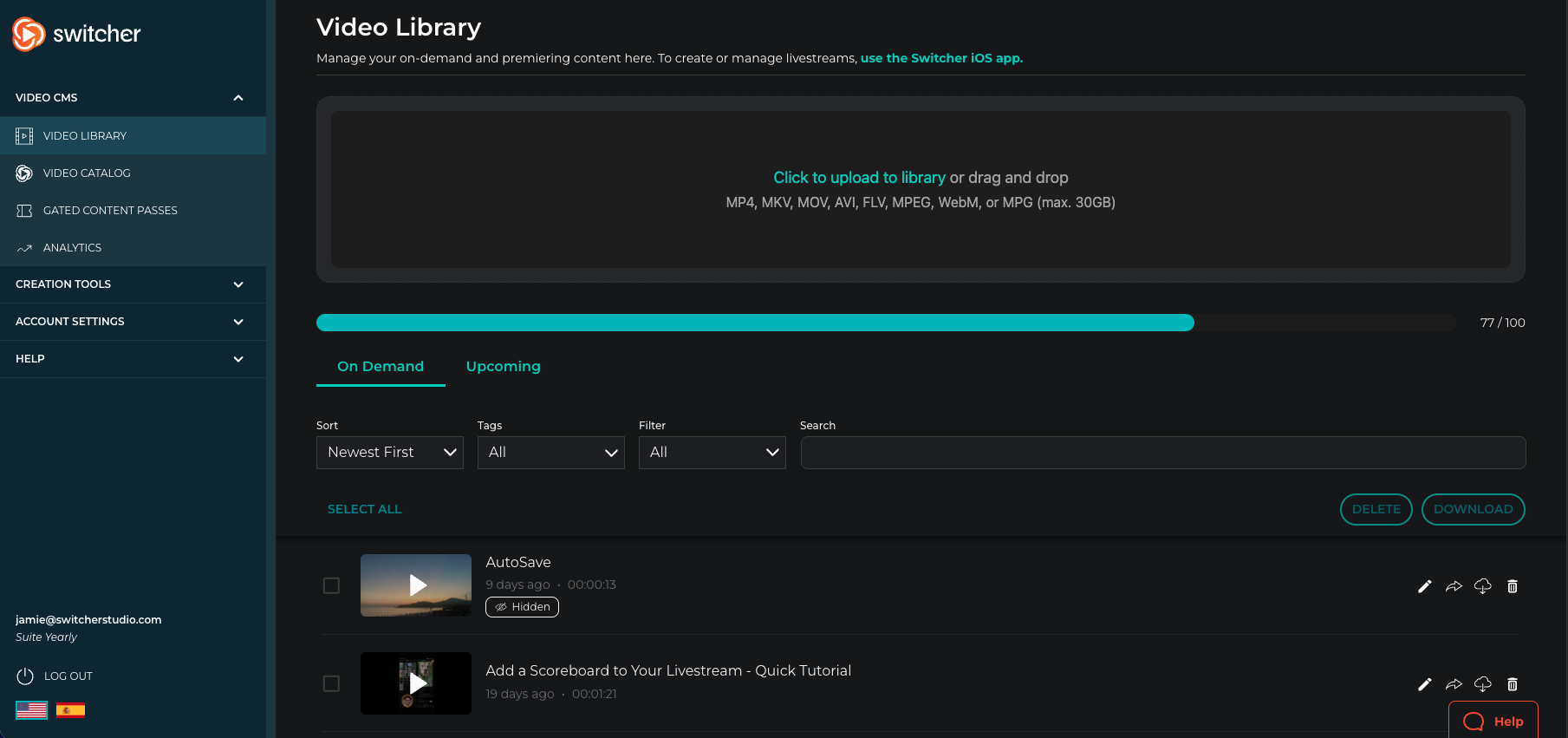
There are two ways to access your Video Library:
- While in the Home screen, tap Video Library and then use the Folder Icon to change between Local Recordings and Video Library.
- While in the Dashboard, open the Video CMS drop-down and choose Video Library.
Where to Look for Your Missing Recording
If your recording is not in the Local Recordings or Video Library folders as shown above, here are some places to check:
Files App (blue folder)/Recently Deleted folder on the main iOS device used to record:
- Open the blue Files App on the iOS device used for your Switcher recording
- Tap Recently Deleted
- If it's not in the Recently Deleted folder, tap back.
- Tap "On My iPad" or "On My iPhone"
- Tap Switcher (also look in the "In Progress" folder within the Switcher folder)
Trash/Finder on the main OS device used to record:
- Within the Dock on your desktop, you should see the Trash can. Double click the Trash can to check for your file.
- If the file is not in the Trash, open Finder
- Click Macintosh HD>
- Click /Users/user-name/
- Next, click Go in the Finder Toolbar at the top of the screen
- With the Toolbar open, hold the Option key to manually reveal the Library folder
- Continue clicking through this file path: Library/Containers/Switcher/Data/Documents
- Check this folder for your file
If you streamed the recording, download the video from the social platform(s) you streamed to:
On Facebook (30 day download limit):
- Go to your Facebook Profile or Page.
- Find the Videos tab on a profile or the Live tab on a Page.
- Click on the video you want to save so it opens in full-screen view.
- Click the three dots (
[...]) or Options menu and select Download video.
On YouTube:
- Go to YouTube Studio on a computer web browser.
- Click Content on the left menu.
- Select the Live tab at the top if you are looking specifically for a past live stream.
- Hover your mouse over the stream you want to save and click the three dots (options icon).
- Click Download to save the video file directly to your computer's downloads folder.
Ways to Permanently Lose Your Recording
- Deleting from the Local Recordings folder without moving or copying the video to another location.
- Uninstalling the Switcher app without backing up Local Recordings you want to keep.
- Uploading from Local Recordings to Video Library and deleting from both locations.
- Not allowing the processing phase to complete after a recording is ended by exiting the app or tapping "Cancel".