
How to Use Instant Replay with Switcher Studio

NOTE: With the release of version 13.20.0, Switcher added the ability to record replay highlight clips as assets so they’re available to use later in the stream or in the future.
Overview
Instant Replay is now officially available in the Switcher iOS and MacOS app, on every plan. Rewind and rebroadcast your best moments, mid-production, without missing a beat! No extra gear. No extra cost.
Here's what's in the first release:
- Customize Duration of Instant replay: rewind and rebroadcast the last 10, 20, or 30 seconds of your production with one tap
- Full-screen or overlay display: Show the replay as a full-screen cut-away or as a branded Picture-in-Picture style overlay on top of your live feed
- Custom style: add your own label, brand colors and border
- Live or replay audio: choose whether viewers hear your live mix or the replay's original audio during playback
- ⭐ Included w/ Version 13.20.0: Clipping those replays as video assets for reuse in your live stream, future use as B-Roll, or sharing in social
Table Of Contents:
- Overview
- Requirements
- Creating an Instant Replay Asset
- Full Screen Instant Replay
- Overlay Instant Replay
- Capturing the Replay Clip & Sending it Live
- Save as Video Asset - NEW w/ Switcher Version 13.20.0
- Related Videos
Requirements
- Switcher Version 13.19.0 or later (version 13.20.0 is required for "Save as Video Asset" feature)
- iOS Version 18.0 or later
- Local Recording must be on (Located in the Outputs Tab - iPad Interface - iPhone interface)
- Director Mode must be off (Located in the Outputs Tab)


Creating an Instant Replay Asset
- In the Sources Panel, tap the blue plus (+) sign.
- Tap Instant Replay.
- Choose between Full Screen and Overlay.
- Set a Replay Duration by choosing between 10, 20 and 30 seconds.
- Edit preferences for Display, Audio, Label and Border.
- When using the Overlay setting, there will be extra options for positioning. You can also use your fingers to expand, shrink and relocate the replay box.
Full Screen Instant Replay


Overlay Instant Replay


Capturing the Replay Clip & Sending it Live
- While recording, tap one of the created Replay Assets to instantly send the previous 10, 20 or 30 seconds to the live feed. With this iteration, the clip will automatically be sent to the live feed.
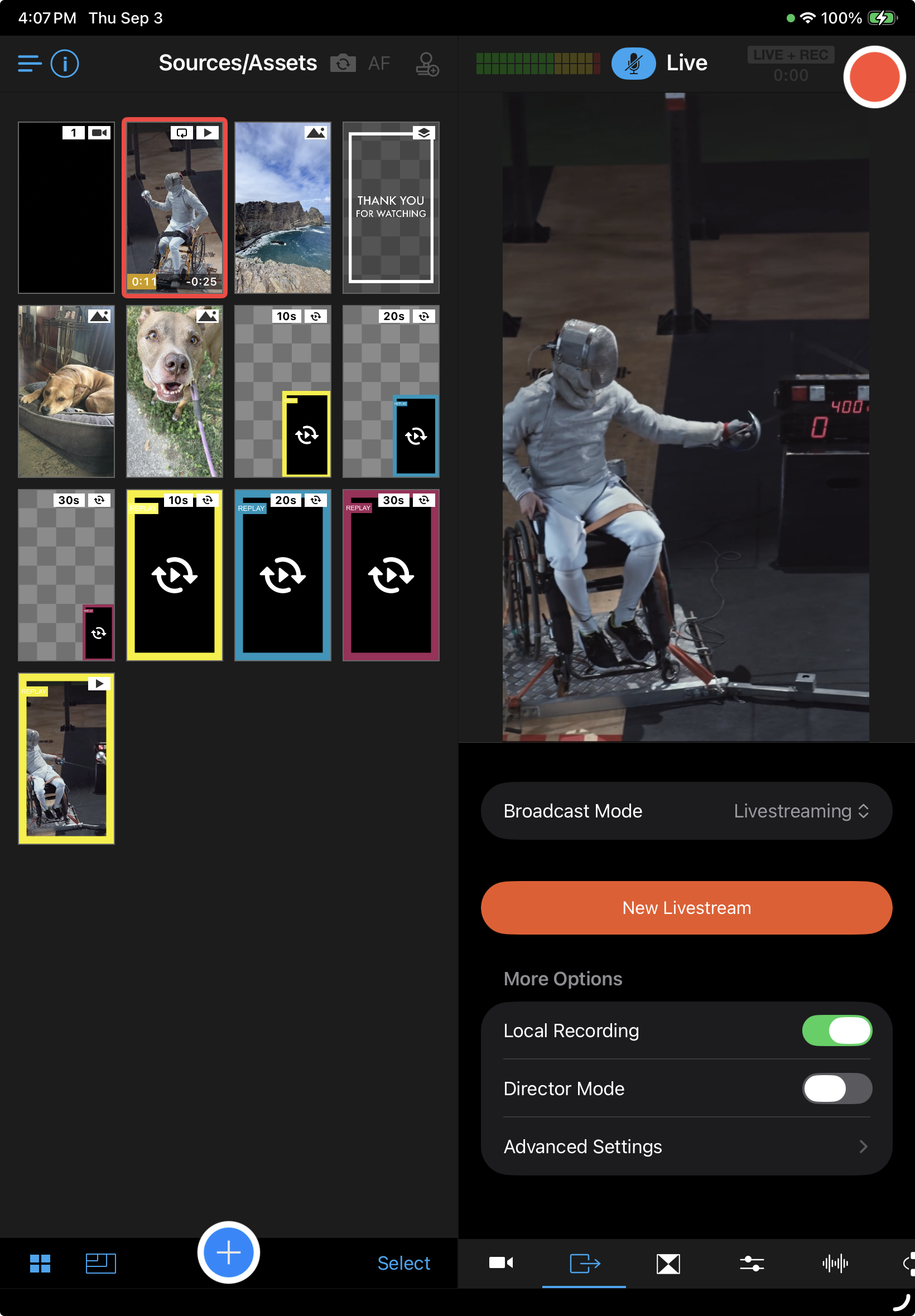
- If you have the "Save as Video Asset" setting (available with Switcher 13.20.0 or later) turned on for the Instant Replay Asset you use, a new Asset will appear in the Sources Panel.
- When using a a Full Screen Instant Replay, tap the next source (e.g. a camera angle or another asset) you want to send to the live feed to remove the Replay window.
- When using an Overlay Instant Replay, it will auto-dismiss by default. This setting can be changed in the Edit Properties menu of the Asset.
- Check out the Related Videos section below to see a walkthrough of the process!
Save as Video Asset - NEW with Switcher Version 13.20.0
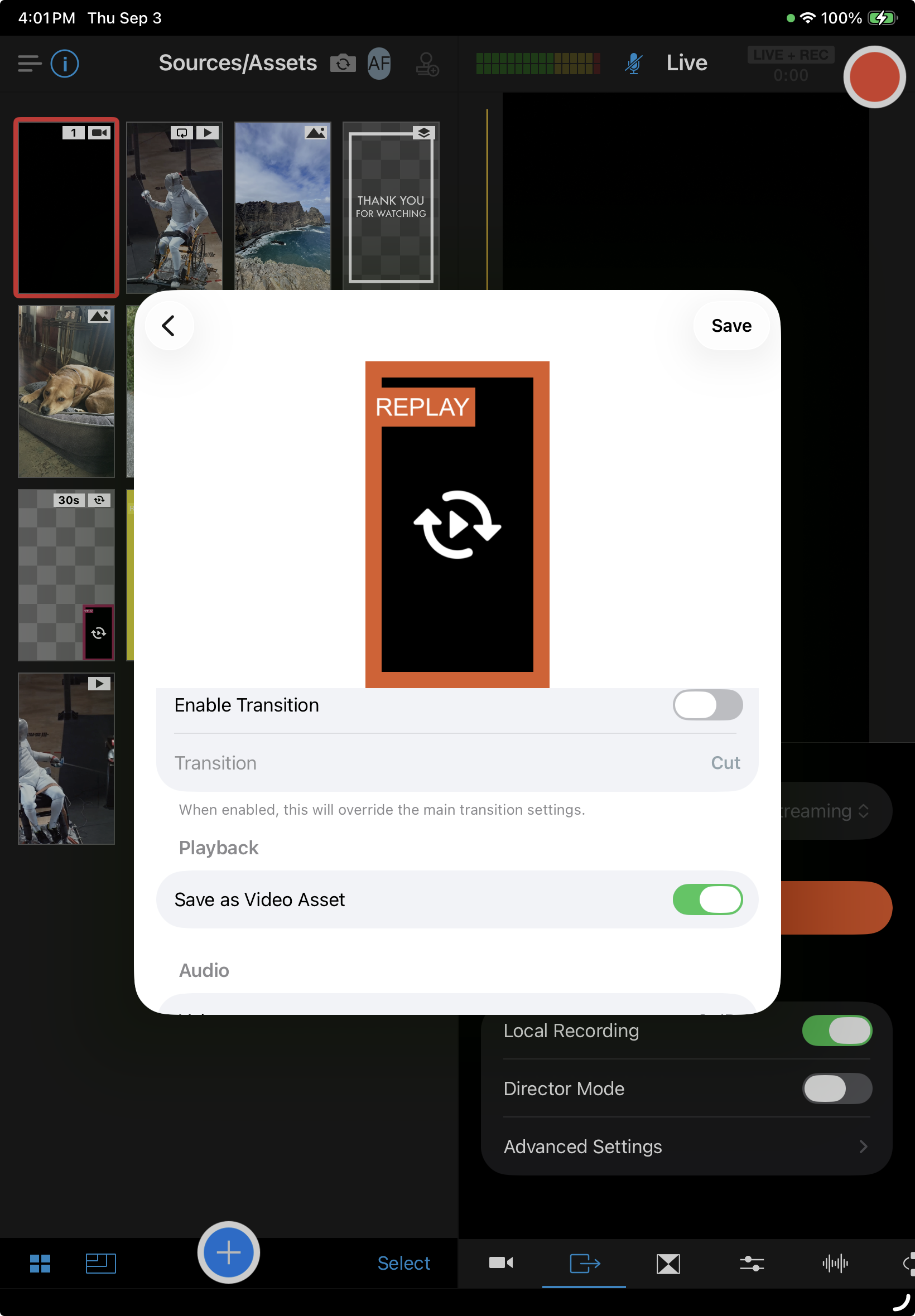
- When creating an Instant Replay Asset, choose whether or not to save captured clips as Video Assets.
- By default, newly created Instant Replay assets will be set to Save as Video Asset in the Edit Properties menu.
- Toggle the preference off and on in the Edit Properties menu for each Asset.
- When you capture your clip and send it to the live feed by tapping the Instant Replay Asset, the new Video Asset will appear in the Sources panel showing a still frame from the clip.
- Check out the Related Videos section below to see a walkthrough of the process!
-
To access your replay captures after recording on an iPad or iPhone:
- Open the blue Files App on the iOS device used for your Switcher recording.
- Tap "On My iPad" or "On My iPhone"
- Tap Switcher
- Replay captures will be labeled as "Replay #"
- Tap and hold the video to see share options
-
To access your replay captures after recording on a Mac:
- Open Finder
- Click Macintosh HD>
- Click /Users/user-name/
- Next, click Go in the Finder Toolbar at the top of the screen
- With the Toolbar open, hold the Option key to manually reveal the Library folder
- Continue clicking through this file path: Library/Containers/Switcher/Data/Documents
- Replay Captures will be labeled as "Replay #"
- Right click the video to see share options