
Helpful Tips for Streaming to Subsplash
You can stream to Subsplash using Switcher's Custom RTMP method. Here is some helpful information to assist you with the setup:
There are two ways to set up a Custom RTMP channel. For copying and pasting reasons (and because the Switcher app can only run in the foreground), most users find it easiest to use the Dashboard on a separate device.
- Setting up Custom RTMP Directly in the Switcher Studio App
- Setting up Custom RTMP in the Switcher Studio Dashboard
In order to locate the Stream Key and Server URL for your Subsplash stream, please view the information below taken directly from the Subsplash help center article titled "Set Up Your Encoder for Streaming":
"Once you've signed up for Subsplash Live, you can follow these steps to set up your encoder for RTMP.
-
Navigate to the Live section in your Subsplash Dashboard.
The first time you visit this page, you will be prompted with 3 steps to get you up and running. Copy the Server URL and Stream name/key from step 2.
- If you have been through setup before and are looking for your credentials again, you can find them in your Media settings.
- This URL/key combination is unique to you as a Subsplash Live client and never changes; once it is saved into your encoder's settings, you shouldn't ever need to update it!
- Once you've acquired these details, you will head over to your encoder of choice, configure it to use the RTMP protocol, and enter both the Server URL and Stream name/key. This step will look different depending on your encoder, but the result should always take you to enter the URL/key and configure it according to our encoding settings.
- Next, you must start a live feed from your encoder to verify that Subsplash is receiving the stream (but don't worry, this feed won't be publicly available anywhere). After a delay of up to 60 seconds, you should see your live feed appear in the stream preview monitor on the Subsplash Live Dashboard page. If you're going through first-time setup, you'll also see a Continue button which you can use to complete the first-time setup process and proceed to the full Subsplash Live experience.
That's it! Your encoder is now connected to Subsplash Live, and any live feed you start from your encoder will be automatically routed to your Subsplash Live ingest point. The next step would be to learn how to schedule a live stream using Subsplash Live."
Note: You may need to create a Subsplash Media Event before sending the Switcher feed in order for Subsplash to receive it.
When you're ready to go live to Subsplash
- In the Outputs tab of the app, use the Broadcast Mode drop-down menu to select "Custom RTMP"
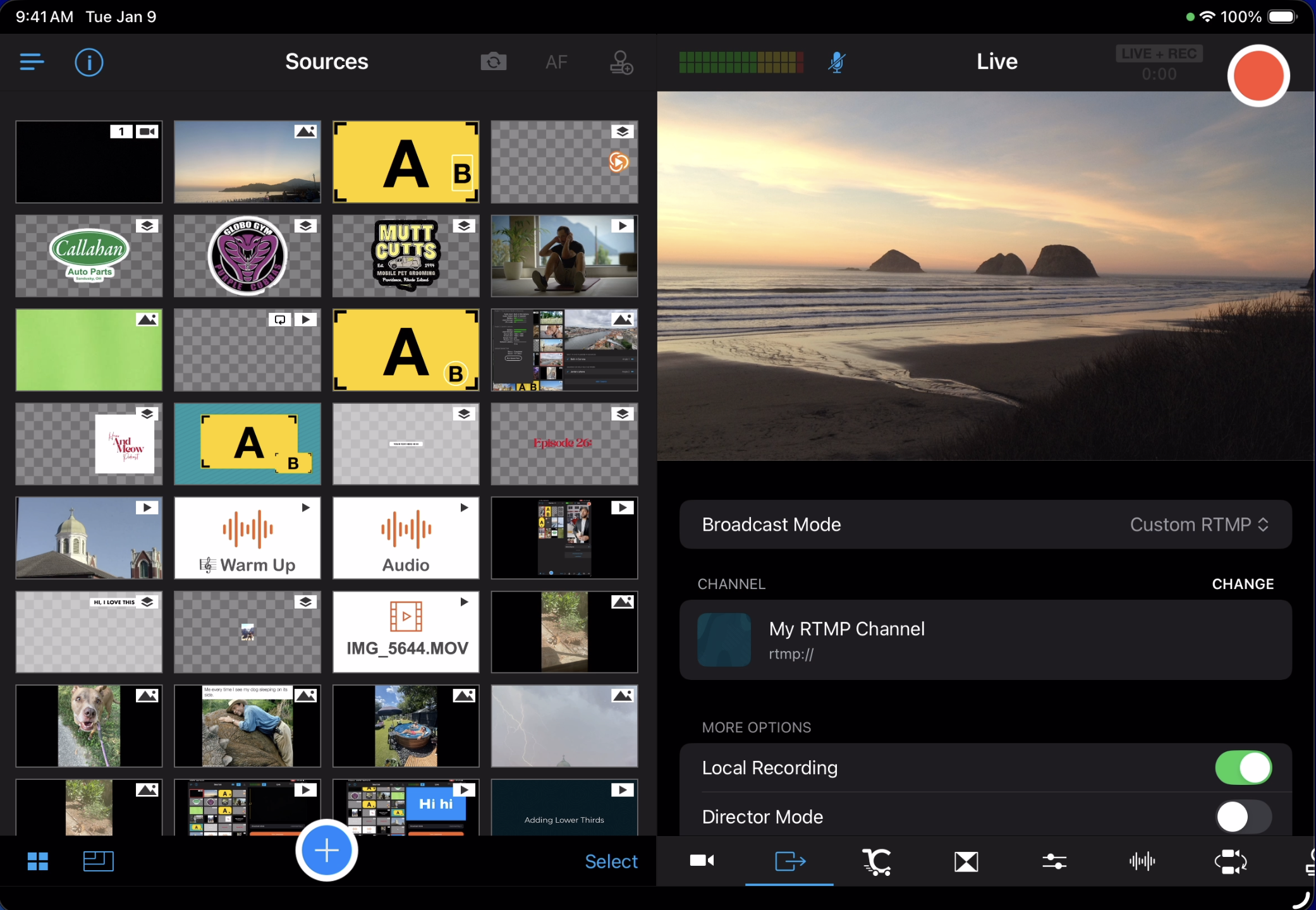
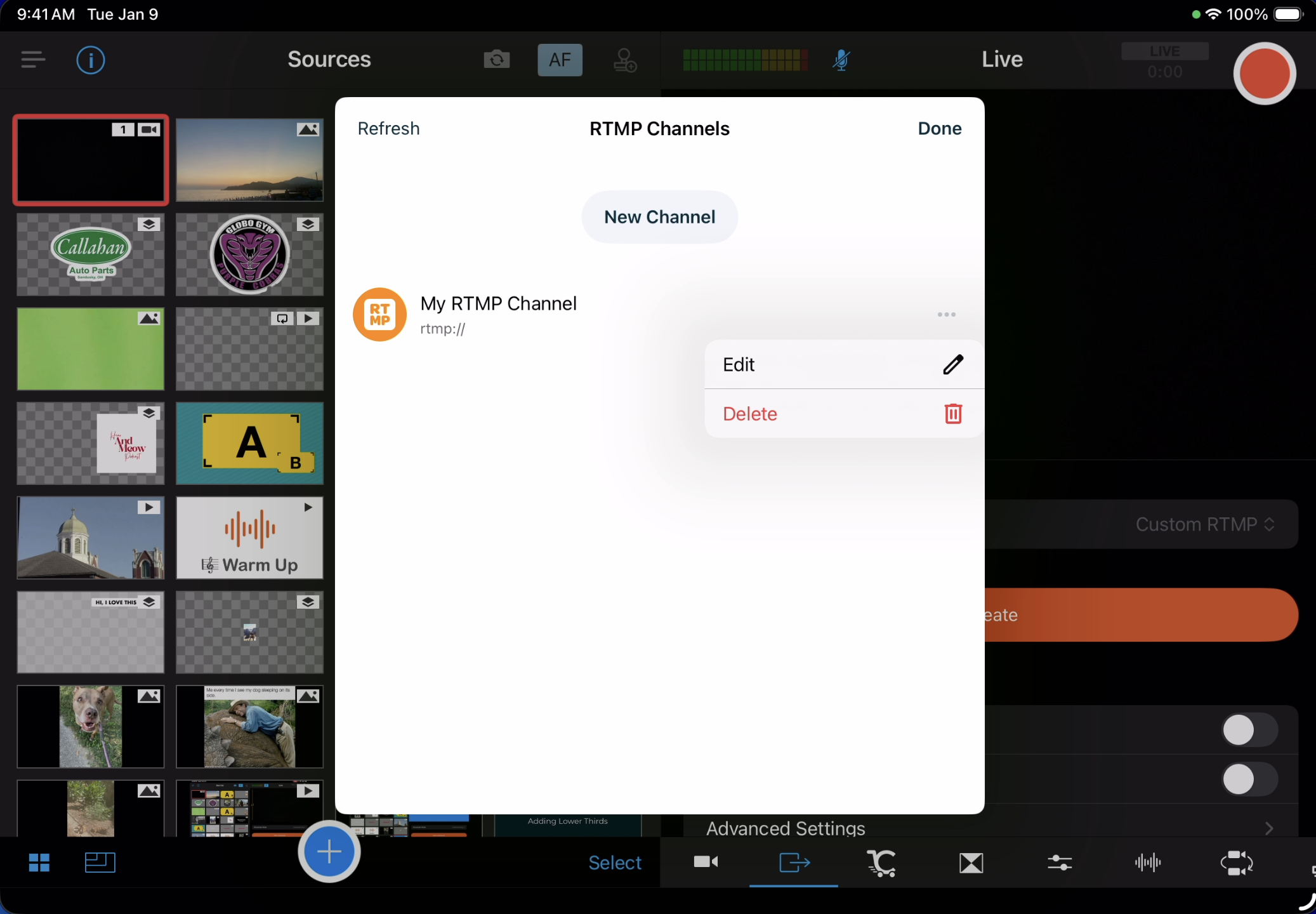
- If necessary, tap "Change" to pull up the RTMP Channel list and select the Subsplash Channel you created.
- Anytime you open the RTMP channel list, tap "Refresh" in the top-left corner to ensure the Dashboard changes sync with the app.
- You can also edit the RTMP channel in this location.
- Once you've selected your channel, tap "Done".
- Once the Subsplash channel is displayed in the Outputs tab, simply tap the red Record button to go live.
- Continue with the Subplash steps listed above to ensure the Subsplash Live Dashboard page is receiving the Switcher feed and is ready to go live.